4K guide
4K IPTV bitrate: why two 4K streams can look so different
The 4K IPTV bitrate is the amount of data spent on each second of picture, and it is the main reason two streams that are both labelled 4K can look nothing alike on the same television. This guide explains bitrate alongside the two settings that work with it, the codec and the frame rate, shows where a player displays all three, and separates what you can improve at home from what is fixed at the source.
Bitrate in plain terms, and why 4K is so sensitive to it
Uncompressed, a 4K picture is enormous. At 50 frames a second, 3840 × 2160 pixels in the 10-bit 4:2:0 format used for television come to roughly 6 gigabits every second. A stream sent to a home carries a tiny fraction of that: at 20 Mb/s, the encoder keeps about one bit in three hundred.
It gets away with it because most of a picture repeats from one frame to the next: the pitch, the studio wall, the backdrop behind a presenter. The codec sends what changed and predicts the rest. When the picture changes everywhere at once, as with fast motion, film grain, rain, confetti or a crowd, prediction fails and the same quality suddenly costs far more data.
4K IPTV bitrate and the codec: HEVC against older formats
The codec is the compression method, and it decides how far each megabit goes. The same picture at the same quality needs very different bitrates depending on which codec carries it:
| Codec | Shown in players as | Where you meet it | Data for a similar picture |
|---|---|---|---|
| MPEG-2 | mpeg2video | old standard-definition broadcasts | the most of all |
| H.264 (AVC) | h264, avc, avc1 | most HD and Full HD channels | about twice what HEVC needs |
| HEVC (H.265) | hevc, h265, hvc1, hev1 | almost every 4K stream, HDR | the reference |
| AV1 | av1, av01 | some web video, recent devices only | around 30 % less than HEVC |
HEVC was designed to need about half the bitrate of H.264 for a similar picture, and nearly every UHD source uses it. It also carries 10-bit colour and HDR comfortably, which H.264 streams seldom do. So the 4K IPTV bitrate of an HEVC stream cannot be compared directly with the figure on an H.264 Full HD channel: 15 Mb/s of HEVC holds far more picture than 15 Mb/s of H.264.
Why hardware decoding matters
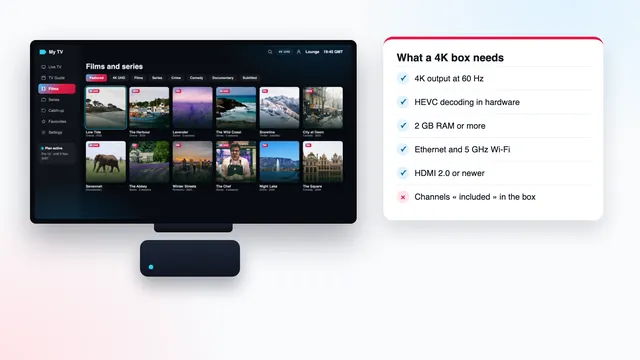
Unpacking HEVC at 2160p and 50 frames a second is heavy work. Devices built for 4K have a dedicated chip for it and do the job without strain. Without that chip, the player falls back on the main processor, known as software decoding, and on a stick or an older box the result is dropped frames, stutter, a picture that freezes while the sound carries on, and a hot device.
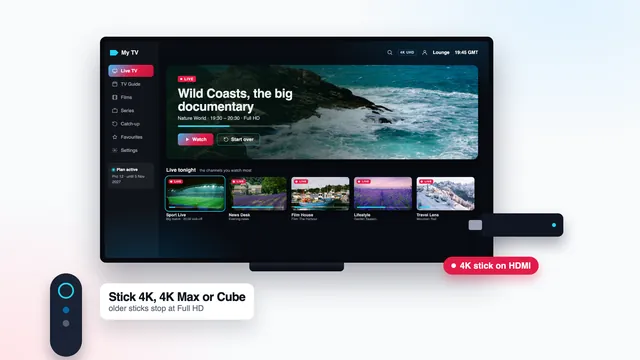
Many player apps have a decoder option: for 4K, leave it on hardware (shown as HW, HW+ or MediaCodec in some apps). This is why the guide to choosing a 4K box puts HEVC hardware decoding at the top of its list of specs.
Frame rate: 25, 50 and the film rates
Frame rate is the number of complete pictures each second. British television runs on a 50 Hz rhythm inherited from the mains supply, and that shapes what you meet in a channel list:
- 50 fps. Live sport and other live UHD programmes, where the source allows it. Motion is smooth and the ball stays sharp. UHD has no interlaced form, so 4K sport arrives as 50 full frames a second (2160p50).
- 25 fps. Much drama, documentary and entertainment made for European television, plus films run very slightly faster than 24 for broadcast.
- 24 fps (or 23.976). Films and many series made for international release, mostly in the on-demand library.
- 1080i. Most HD channels are interlaced: each frame is sent as two half-pictures that the player or the TV has to weave back together. Poor deinterlacing leaves comb-like teeth on moving edges.
- 60 or 59.94 fps. Sources from North America and parts of Asia.
More frames cost more data, though well under double, because neighbouring frames are so alike that the codec spends most of its effort on the first one. Even so, a 50 fps stream is where a shortage shows first. At the same bitrate, a 25 fps film can look spotless while a 50 fps match from another source breaks up on every long pass.
Matching the output to the programme
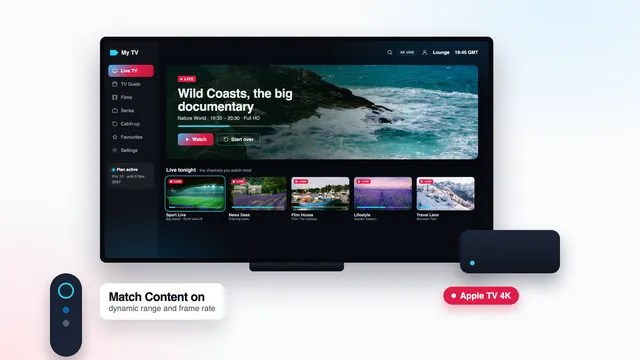
If the stick sends 60 Hz and the programme is 50 fps, some frames are shown twice and slow pans judder slightly. On Apple TV the cure is a switch called Match Frame Rate, found in Settings › Video and Audio, in the Match Content section. Kodi has ‘Adjust display refresh rate’ in its player settings, and several Android TV players, TiviMate among them, offer an automatic frame rate option. With a fixed output, 50 Hz suits UK viewing best.
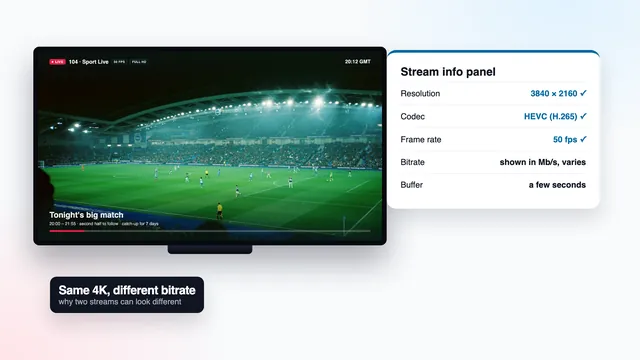
Reading the player’s stream info panel
Any capable player can show what it is decoding. The name changes from app to app (stream info, media information, codec information, statistics), but the fields are similar. Open it a few minutes into a programme rather than in the first seconds, once the buffer has settled.
| Field | What a 4K stream shows | What it tells you |
|---|---|---|
| Resolution | 3840 × 2160 | the frame size the source sends; 1920 × 1080 means Full HD, whatever the channel is called |
| Codec | hevc, hvc1 or h265 | HEVC, as expected for UHD; h264 at 2160p is unusual and needs far more data |
| Frame rate | 50, 25 or 23.976 | 50 on live sport when the source offers it; 25 or 24 for most drama and films |
| Bitrate | a figure in kb/s or Mb/s that moves | how much data the source spends; 18,000 kb/s is 18 Mb/s |
| Colour and HDR | bt2020 with smpte2084 or arib-std-b67 | HDR is present: smpte2084 is PQ (HDR10), arib-std-b67 is HLG; bt709 means standard range |
| Pixel format | yuv420p10 | 10-bit colour and smoother gradients; yuv420p is 8-bit |
| Decoder | hardware, HW or MediaCodec | the dedicated chip is working; SW means the processor, a common cause of stutter |
| Dropped frames | 0 or close to it | a count that keeps rising means the device or its output cannot keep up |
The bitrate line rises in busy scenes and falls in calm ones, which is normal. Watch it over a minute rather than reading a single value. In VLC on a computer, the Statistics tab of the media information window shows the input bitrate as the stream plays; in Kodi, the O key on a keyboard opens an overlay with the codec and frame details.
What a 4K picture short of bitrate looks like
Compression damage has a recognisable look. Learning it tells you whether a poor picture comes from the source or from your home, because these faults are built into the stream before it ever leaves for your house.
Dark scenes: blocks and steps
Night scenes, dim interiors, black coats and the shadowed side of a stadium break into squares that crawl as the camera moves. Fades to and from black do the same. Encoders save data in areas they expect the eye to ignore, and dark areas are cut first.
Fast motion: smearing and lost texture
On a quick pan across a pitch, the grass becomes a green smudge, shirts lose their weave and numbers blur, then everything snaps back into focus once the camera stops. Crowds, rain, smoke, water and confetti are the hardest content of all, since every frame differs from the one before and there is nothing to predict.
Gradients: banding
Smooth transitions such as a dusk horizon, a spotlight on a stage or a plain studio wall show stripes of colour. A 10-bit HEVC stream resists this much better than an 8-bit one, so banding on a 4K HDR source usually means too little data, whereas on an 8-bit stream part of it is simply the format.
Detail that pulses
Every second or two the encoder sends a complete frame, called a keyframe, and only changes in between. On a starved stream, detail sharpens on each keyframe and softens until the next, so the picture seems to breathe.
The honest conclusion: a 4K stream at a low bitrate can look worse than a well-encoded Full HD stream of the same programme. Extra pixels are only worth having when there is enough data to fill them.
Why two 4K channels can look different
Two lines can both report 3840 × 2160, HEVC and 50 fps, yet one is clearly cleaner. The reasons all sit upstream of your home:
- The source bitrate. One feed was encoded with more data than the other.
- The number of encodes. A picture compressed, unpacked and compressed again loses a little each time, like a photocopy of a photocopy.
- The production format. One is native UHD; the other is an HD production enlarged to 2160 lines before encoding, so its resolution is real and its detail is not. The IPTV 4K Ultra HD guide shows how to spot it.
- The encoder’s care. Slower, more thorough encoding extracts more picture from each megabit.
- HDR handling. A stream that loses its HDR flags along the way looks flat and grey on an HDR television.
None of this appears in a channel name. We do not promise a bitrate for any 4K line, because each source sets its own and it varies from one channel or title to the next. The info panel shows the symptoms; your eyes, on the scenes described above, do the rest.
What you can change at home, and what you cannot
In your hands
- The decoder. A device that decodes HEVC at 2160p in hardware, with the player’s decoder option set to hardware.
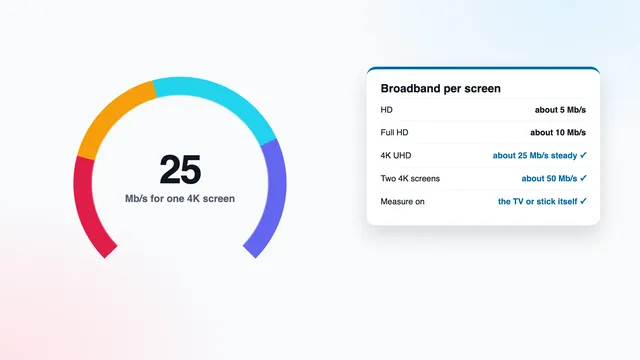
- The connection. Around 25 Mb/s held steadily for each 4K screen, so the full bitrate reaches the player without pauses.
- The output. 2160p at 50 Hz, or automatic frame rate, through an HDMI 2.0 port and a cable rated for 18 Gb/s.
- The TV’s processing. Motion smoothing and heavy sharpening add halos and artefacts of their own. On a weak source, a low setting of digital noise reduction can hide some blocking; on a good one it only softens detail.
- The line you pick. When a channel appears in 4K and in FHD, the FHD line can look cleaner on a source that is short of data.
Out of your hands, and out of ours
- The bitrate the source was encoded at.
- Whether the programme was produced in UHD at all.
- Any encoding done before the stream reached the servers.
Bitrate and broadband: where 25 Mb/s comes from
Live 4K streams use a variable bitrate: the encoder spends little on a still studio shot and much more on a goalmouth scramble. A stream that averages, say, 15 Mb/s can climb well above 20 for several seconds. Planning on about 25 Mb/s steady for each 4K screen covers those climbs, plus the small hiccups every home network has, so the player’s buffer rarely runs dry.
When the connection falls behind, a live channel does not usually step down to a lower quality the way some on-demand apps do: it pauses to refill its buffer. Regular pauses therefore point at the line or the Wi-Fi, and blocking without pauses points at the source. The 4K IPTV bandwidth guide shows how to measure the speed that actually reaches the television, evening peak included.
Bitrate and the four plans
Bitrate belongs to each source, so it is identical whichever plan you choose: Pro 3, Pro 12, Pro 12 Duo and Pro 24 carry the same channels, an identical 120,000-title library and identical picture levels. The plans page compares them by months and screens only; Pro 12 at £49 is the one this site suggests, and Pro 12 Duo at £79 suits two screens at once, as long as the line holds around 50 Mb/s when both screens play UHD. Orders start from the price cards on the home page; payment goes through once (debit or credit card or PayPal), and roughly 2 minutes after it clears, the login message lands on WhatsApp or by email.
Once it does, the setup guide for 4K screens covers the decoder, output and frame rate settings described here. To see how 4K IPTV Premium presents each 4K claim, start from the home page. And if an info panel shows something you cannot explain, send a photo of it through the contact page: it is the quickest way for the team to tell a source issue from a settings issue.
Frequently asked questions
What bitrate does a 4K stream need?
There is no single figure. With HEVC, 4K streams that look clean commonly sit somewhere around 15 to 25 Mb/s, and HDR, 50 fps and busy content push the need upwards. We do not quote a bitrate for our lines, because each source sets its own.
Is a higher bitrate always better?
Only up to a point. Beyond the level where the encoder stops losing visible detail, extra data adds nothing you can see and still uses bandwidth. The codec matters as much: 15 Mb/s of HEVC can beat 25 Mb/s of H.264.
Why does the 4K version of a channel look worse than the HD one?
Usually because the 4K feed is short of data for its size, or because it is an HD production enlarged to 2160 lines. In that case the FHD line can be the better choice for that channel.
Where can I see the 4K IPTV bitrate of what I am watching?
In the player’s stream info panel, often behind an ‘i’ icon or a long press on OK. In VLC on a computer, the Statistics tab of the media information window shows it live.
Will faster broadband make the picture sharper?
Only if the problem is pauses or buffering. A faster line cannot add data that the source never had; it only delivers what is already in the stream.
Does 50 fps use more bitrate than 25 fps?
Yes, but much less than double, because neighbouring frames are very similar. It is still the first place where a shortage of data shows, on fast pans and long passes.
Do the plans differ in bitrate or picture quality?
No. All four plans carry the same sources at the same picture levels; only the months and the screen count change from one to the next.