
Username
Identifies you to the server. Upper and lower case count as different characters, so copy it exactly.
Setup
This 4K IPTV setup walk-through starts with the message on your phone and ends when the player’s info panel reads 3840 × 2160. Budget ten to twenty minutes per screen: an app to install, a login to type, a guide to align with the clock, and a handful of display settings that decide whether a genuine 4K source arrives on the panel intact.
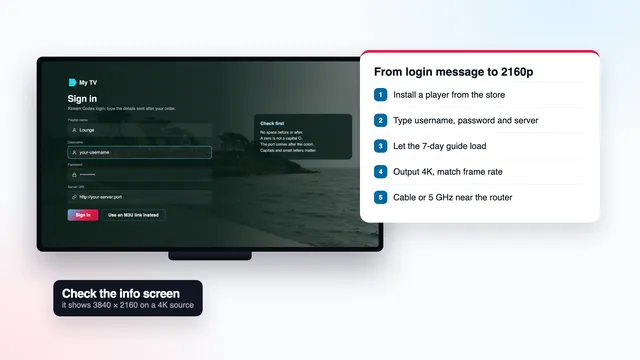
The 4K chain
Every 4K IPTV setup depends on the same five links. Each section further down deals with one of them.
The programme must be produced at 3840 × 2160. Nothing later in the chain adds pixels that were never there.
Per 4K screen, steady, read on the TV or stick during the busiest hour of the evening.
4K streams are mostly HEVC (H.265); a chip in the device must decode them, not software.
On the TV input, on the device and in the cable between the two.
3840 × 2160 pixels on the screen, with HDR as a bonus when source and TV both handle it.
If one link fails, a 4K title quietly plays at a lower resolution or freezes.
Before you begin, gather four things: the login message open on your phone; the TV’s make and model, found in its settings or on the sticker at the back; something better than a remote for typing; and a broadband speed figure measured on the TV or stick.
For the typing, a cheap USB keyboard in a box’s spare port, or the phone app many TV makers offer as a remote, turns a long server address into a short job. Without either, go one character at a time and read it back before pressing Next.
Step by step
These nine steps hold for almost every device. Steps 2 and 3 are the only ones that vary with the screen, and the device cards further down fill them in.
WhatsApp or email, roughly 2 minutes after the bank approves your payment. Keep it visible: you will copy several lines from it.
It must run on the device and decode HEVC with the hardware. The cards below list sensible choices for each kind of screen.
Apple devices use the App Store, Android devices Google Play, smart TVs their built-in store. Fire TV is the exception: Downloader comes first, and the player’s link arrives with your login.
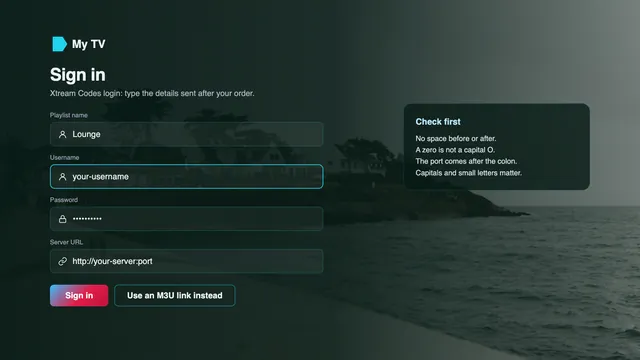
If the player offers several ways to add content, take Xtream Codes, sometimes called Xtream Codes API, ahead of an M3U playlist.
The server address keeps its http:// and its :port. Username and password are case-sensitive. The profile name is up to you.
Over 40,000 channels, the on-demand library and seven days of guide data come down now. Avoid pressing buttons until the categories appear.
Pick any programme and check its start time against your phone. A neat one-hour gap is fixed with the player’s EPG time offset.
2160p or Auto output, dynamic range and frame rate matched to the content, hardware decoding inside the player, an HDMI 2.0 input.
Start a title labelled 4K, call up the player’s info panel and read the resolution: 3840 × 2160. On live sport, the frame rate should read 50 where the source sends 50.
You do steps 1 to 3 once per device, 4 to 7 once per player, and 8 and 9 again whenever the TV or the device changes. Prefer company? Tell the team which device you have and they will walk through it with you screen by screen. Still deciding? The overview of 4K IPTV on the home page covers what you get.
Credentials
For most of a 4K IPTV setup, three of the six lines do the work. The rest are for playlist-only apps, for the guide and for your calendar.
Username, password and server URL together form an Xtream Codes login, the format nearly all current players accept. The M3U and XMLTV addresses exist for apps that cannot use Xtream, and the final line records when your plan expires.
Keep a second copy somewhere other than the chat it came in: a notes app, a password manager, even a printout in a drawer. When a new TV arrives in a year’s time, these lines are all you need.
Treat the details as household property. A login that shows up in another home, or in a screenshot shared online, can be suspended.
The message itself, 2 minutes or so after payment
Dots and placeholders on this page; the genuine values travel only in the message sent to you.
Identifies you to the server. Upper and lower case count as different characters, so copy it exactly.
Paired with the username. Many players mask it while you type, so pasting is safer when the device allows it.
Looks like http://your-server:port. Drop the colon or the port and the server will not accept the login.
A single long link containing every channel, for VLC, Kodi, Smart IPTV and any player without Xtream support.
A week of programme data for apps loaded through the M3U address. Xtream logins collect the guide automatically.
The final day of the plan. There is no renewal; a later order brings a new set of details, typed into the same apps.
Devices
Step 2 is the one that changes with the hardware. Find your device below; every player listed accepts the same login.
The Amazon Appstore does not carry Smarters Pro, so the route is Downloader, an Appstore app by AFTVnews. Let it add apps from outside the store: that permission sits in Settings › My Fire TV › Developer options, under Install unknown apps. No Developer options? Go to Settings › My Fire TV › About and select the device name seven times. Your login message includes the download link. Among Amazon’s sticks and boxes, the Fire TV Stick 4K, Stick 4K Max and Fire TV Cube output 4K; the Lite and the basic stick stop at 1080p, and certain recent Amazon models use Vega OS, on which only Appstore apps can be installed, so check the model before buying. Details in the 4K IPTV Firestick guide.
The Samsung store may or may not list Smarters Pro, depending on model and country. Two alternatives cover most sets. Smart IPTV is activated once per television, and you upload the playlist on its website against the set’s MAC address. IBO Player links your playlist to the TV through its MAC address or device key. HDR10+ is supported, Dolby Vision is not. See the guide to 4K IPTV on a Samsung TV for the HDMI options.
On webOS the situation mirrors Samsung: Smarters Pro varies with model and country, while Smart IPTV and IBO Player work on most sets. OLED and QNED models handle Dolby Vision. When no player fits, plugging a 4K stick or box into an HDMI 2.0 input solves it.
Google Play carries IPTV Smarters Pro, XP IPTV and TiviMate, the last free to install with paid premium options. Skip APKs posted on forums: malware travels that way. Certified boxes keep receiving updates, and the 4K IPTV box guide sets out which specs count for 4K.
Apple devices install only from the App Store, where IPTV Smarters Pro and VLC are listed at the time of writing. On an Apple TV 4K, Settings › Video and Audio › Match Content holds two switches to turn on, Match Frame Rate first and Match Dynamic Range second. The earlier Apple TV HD cannot go beyond 1080p. The Apple TV 4K guide goes through each menu.
VLC plays the M3U address on Windows, macOS, Android and iOS. Kodi needs one add-on first, PVR IPTV Simple Client, and then reads it too. Smarters Pro is available for Android phones and tablets and for Apple-silicon Macs. Use a phone as a quick diagnostic: when the phone plays and the TV will not, the login is fine and the TV is the place to look.
Search the store for « Smarters Pro » and check that the listing names Tech Smarters Private Limited as developer, because similarly named copies exist. Downloading is free; a Premium upgrade is optional and its price varies by store. The app arrives empty: the channels come from your login.
We do not publish apps or sell hardware. Our comparison of player apps that decode 4K well goes device by device.
Signing in
Where a player gives you the choice, Xtream Codes wins. Live channels, the film library, the series library and the guide each get their own section, and the listings download without any extra address.
When a player rejects the login, the cause is nearly always a single character: a missing http://, no port, a trailing space, a capital I typed as a lower-case l. Paste rather than type if the device has a clipboard.
Expect the first sync to take a minute or longer, more on a budget stick, because the full channel list and a week of guide data come down in one go. Playlist-only players are covered in our 4K IPTV playlist (M3U) guide, which shows where both addresses go.
| Question | Xtream Codes login | M3U playlist link |
|---|---|---|
| Lines used from the message | Lines 1 to 3 | Line 4, then line 5 for the guide |
| Menu name in players | Xtream Codes, Xtream Codes API, Login with Xtream | Add playlist, M3U URL, Remote playlist |
| Guide | Fetched automatically | Needs the XMLTV link pasted into the EPG settings |
| Films and series | Own menus with posters | Depends on the player; sometimes mixed in with the live channels |
| Typical players | IBO Player, TiviMate, XP IPTV, IPTV Smarters Pro | Smart IPTV, VLC, Kodi (PVR IPTV Simple Client) |
Listings
Signed in with Xtream, the player pulls a week of listings by itself, already on UK time. Using the M3U address instead, paste the XMLTV link into the EPG field of the player’s settings and allow a minute for it to load.
UK time is GMT in the cold months and BST, one hour ahead, in the warm ones. The switch to BST happens on the final Sunday in March, the switch back on the final Sunday in October. On 5 November 2026, when this page was last checked, the UK clock was on GMT.
A grid that is wrong by exactly sixty minutes is a settings matter, not bad data. Correct the device’s own time zone to London first. If the gap remains, nudge the player’s EPG time offset (sometimes EPG shift) by one hour, and reverse it if the gap grows to two.
Catch-up is reached through the same guide. Programmes with an archive show a small icon; pick one from the past week and it starts at the beginning.
| Symptom | Cause | Fix |
|---|---|---|
| Everything shifted by an hour | Player on the wrong side of the clock change | EPG time offset +1 or −1 |
| Times wrong by several hours | Device set to a foreign time zone | Change the device’s time zone to London and reload the listings |
| Guide empty with the M3U route | XMLTV address never added | Paste the fifth line of the message into the EPG field |
| Only a day or two of listings | Partial download | Run an EPG refresh or update in the player |
Picture settings
People skip this part of a 4K IPTV setup more than any other, and it is the part that decides whether 4K survives the trip to the panel.
| Setting | Where to find it | Set it to |
|---|---|---|
| Resolution | Fire TV: Settings › Display & Sounds › Display. Apple TV: Settings › Video and Audio › Format | 2160p (4K) or Auto, never a fixed 1080p |
| Dynamic range (HDR) | Fire TV: Dynamic Range Settings. Apple TV: Match Content › Match Dynamic Range | Adaptive, or matching on, so HDR switches on only for HDR sources |
| Frame rate | Fire TV: Match Original Frame Rate. Apple TV: Match Content › Match Frame Rate | On, so 50 fps sport is shown at 50 Hz rather than converted to 60 |
| Video decoding | The player’s playback or decoder settings | Hardware (often labelled HW) for HEVC (H.265) |
| HDMI input | The port labels on the TV and its HDMI signal setting | HDMI 2.0 or newer, enhanced format on (Samsung: Input Signal Plus; LG: HDMI Ultra HD Deep Colour) |
| HDMI cable | The print on the cable or its packaging | 18 Gb/s capable: look for Ultra High Speed or Premium High Speed on the label |
Start with resolution. A device locked to 1080p downsizes each 4K title to Full HD before the signal ever leaves it. Auto works when the TV announces its abilities correctly; if 2160p then appears in the menu, select it.
HDR should follow the programme, switching on for HDR content and off for everything else. Forcing HDR permanently tends to make ordinary HD look grey or gloomy. And HDR has to exist in the source: plenty of 4K programmes carry it, plenty do not.
Live sport in the UK is usually produced at 50 frames per second. Left at 60 Hz, a device has to convert, and that conversion shows up as a slight stutter whenever the camera pans. Frame-rate matching, or a fixed 2160p 50 Hz output, cures it.
Most 4K streams are encoded in HEVC (H.265). A hardware decoder handles them smoothly; leave the job to software on a low-power stick and you get dropped frames or a frozen picture. When 4K stutters but HD is perfect, check the decoder before anything else.
Then the HDMI path: an input rated HDMI 2.0 or above, that input’s full-bandwidth mode switched on, and a cable that can carry 18 Gb/s. Cables pulled from an old DVD player are a classic cause of flicker or a silent drop to 1080p.
Even with all six right, two 4K streams may not look identical; our guide to 4K IPTV bitrate and HEVC explains why.
Connection
| Quality | Resolution | Steady speed on the device | Connection that suits it |
|---|---|---|---|
| HD | 1280 × 720 | Around 5 Mb/s | Either Wi-Fi band |
| Full HD | 1920 × 1080 | Around 10 Mb/s | 5 GHz Wi-Fi or a cable |
| 4K UHD, one screen | 3840 × 2160 | Around 25 Mb/s | Cable, or 5 GHz close to the router |
| 4K UHD on two screens (Pro 12 Duo) | 3840 × 2160 twice | Around 50 Mb/s combined | A cable to at least one of them |
A network cable from router to TV or box gives the most stable connection and on its own clears up most evening stalls. If a cable is impractical, connect to the router’s 5 GHz network from as close as you can; it carries more than 2.4 GHz but weakens quickly through walls.
If the TV is several rooms away from the router, a pair of powerline adapters or mesh Wi-Fi tends to beat a stronger router. Take speed readings on the TV or stick, not on a phone, between 19:00 and 23:00: that is the UK peak, heaviest at weekends and when a big match is on.
Our 4K IPTV bandwidth guide covers measuring on each device and sharing one line with a busy household.
Verify
Do not take a « 4K » label on trust, ours included. Two screens tell you what is actually playing.
The player’s info panel reports on the stream. Many players open it with OK, Info or the up arrow during playback, or through an options menu; look for resolution, codec, frame rate and, in some apps, bitrate.
The TV’s own banner reports on the signal coming through HDMI. Pressing Info on the TV remote, or opening the input menu, usually shows resolution and refresh rate, plus an HDR badge when HDR is active.
Compare them. Player at 3840 × 2160 but TV at 1920 × 1080 means the device output is capped at 1080p. Both at 1920 × 1080 on a « 4K » title points to the source or the decoder. Both at 3840 × 2160 means the chain is intact.
Most channels are produced in HD or Full HD and will honestly report 1280 × 720 or 1920 × 1080, however perfect your setup. Upscaling fills a 4K panel but adds no detail; our guide to IPTV 4K Ultra HD and upscaling shows how to spot the difference.
Night one
Ten minutes of checking on the first night prevents most of the questions that come later. Open the guide first and hold one start time up against your phone’s clock.
Next, play something labelled 4K and bring up the info panel. Then switch to a live sports channel and check for 50 fps where it is offered; our guide to 4K IPTV football on match nights explains what a big game asks of your setup.
Run a speed check on the streaming device itself while the evening peak is on. Readings well short of 25 Mb/s per 4K screen at that hour tell you in advance where pauses would come from.
Last, mark a few favourites and replay something from catch-up. Expect live pictures to trail the broadcast by a few seconds, occasionally by around half a minute; streaming always adds that delay.
Troubleshooting
Almost every first-week problem with a 4K IPTV setup is on this list, and each one has something to try before you write to us.
| What you see | Likely cause | Try this |
|---|---|---|
| Login rejected | One wrong character in the server, username or password | Look for http://, the :port, upper-case letters and stray spaces; paste where possible |
| Categories load but streams will not start | Decoder choice or an out-of-date player | Update the app, toggle hardware and software decoding, power-cycle the device |
| 4K titles look no sharper than HD | Device locked to 1080p, a stick limited to Full HD, or an HDMI 1.4 input | Choose 2160p or Auto, move to an HDMI 2.0 input, check the device model’s specs |
| 4K freezes while HD plays | Software decoding, or under 25 Mb/s at the device | Enable hardware HEVC decoding; switch to a cable or 5 GHz |
| Washed-out or dark colours | HDR forced on for SDR programmes | Set dynamic range to follow the content |
| Slight stutter on sport | Output at 60 Hz | Enable frame-rate matching or select 50 Hz |
| Guide exactly one hour out | GMT/BST mismatch | Fix the device clock’s zone, then the player’s EPG offset |
| No login message | Junk folder, a different chat, or a payment still waiting for bank approval | Check junk mail and the banking app, then contact the team |
Still stuck? Send the team the device model, the player, how far you got and a phone photo of what the TV shows; someone will go through it with you. If, after that, no screen in the house will display a picture, the 7-day refund rule applies.
FAQ
Around ten minutes on a phone or an Android TV. A Fire TV needs longer the first time, since Downloader and the developer option come before the player. Allow a few extra minutes per TV for the display settings, which you only do once.
Each screen needs its own player, all using the same login. One-screen plans stream to one device at a time; Pro 12 Duo streams to two at once.
Something in the chain is missing: a programme not produced in 4K, an output locked at 1080p, an HDMI input older than 2.0, or software decoding of HEVC. Put the player’s info panel next to the TV’s banner and the culprit usually shows itself.
Yes. On WhatsApp, a team member guides you while you hold the remote: which app, which field gets which line, which setting to change. A phone photo of the TV screen makes it faster.
Only if neither your TV nor a 4K stick runs a suitable player; the box adds no channels. If you buy one, the checklist is 4K at 60 Hz output, HEVC decoded in hardware, a minimum of 2 GB RAM, an Ethernet socket, 5 GHz Wi-Fi, and Android TV or Google TV certification.
The players stay where they are. Your new login message brings a new server URL, username and password, which replace the old ones in each player.
Choose a plan and make the single payment, then repeat this 4K IPTV setup on every screen. If no screen in your home shows anything despite the team’s help, a refund can be claimed within 7 days.