4K guide
4K IPTV playlist: the M3U link, the 4K group and the guide that goes with it
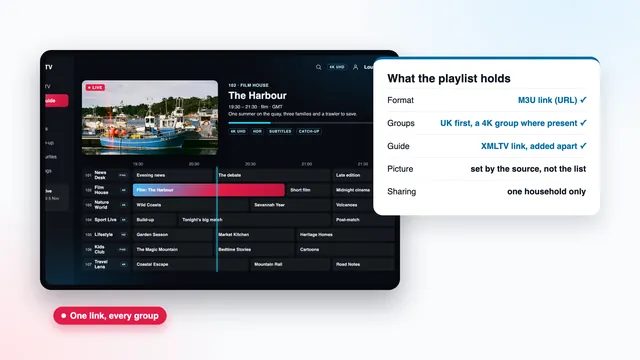
Your 4K IPTV playlist is the M3U link in your login message: one address that hands a player app the entire channel list, sorted into groups and ready to scroll. This guide opens that link up, shows where the 4K group sits, adds the XMLTV guide, names the players that load it and weighs it against the Xtream login. It also covers the limit that matters most: a list only points at streams, and whether one reaches your screen in 4K depends on its source and on every link of the chain after it.
The M3U link in your login message
Around 2 minutes after your payment clears, the login message reaches you, by WhatsApp or by email. Next to the three Xtream fields (username, password, server URL) and the end date, it carries two long links made for pasting: the playlist and the XMLTV guide.
A playlist link always follows the same pattern. With the server as a placeholder and dots where your own details go, it reads:
http://your-server:port/get.php?username=…&password=…&type=m3u_plus
Your username and password fill those two gaps in plain text, so the link deserves the same care as the password itself. The type=m3u_plus part asks for the richer form of the list, with group names, logos and guide references. And a link that loses its final characters on the way to the app fails outright, so paste it whole; if it carries one more setting at the end, leave that exactly as sent.
Entering it with a TV remote
Eighty-odd characters typed with arrow keys is a slow way to spend an evening. A player that accepts the Xtream login needs only three brief fields instead, and some TV apps take the list through their own website, so you paste it from a phone. The step-by-step 4K IPTV setup shows each route on each kind of device.
Inside a 4K IPTV playlist: lines, groups and labels
Open a 4K IPTV playlist in a text editor and it reads like a ledger. The first line says #EXTM3U; after that, every channel takes two lines, a description beginning with #EXTINF and the stream address underneath. The description holds a few labels, and the player turns those labels into the menus you scroll through on the sofa.
| Part of the entry | What the player does with it | What it cannot tell you |
|---|---|---|
tvg-id | Pairs the channel with its listings in the XMLTV guide | Whether the guide holds data for that channel today |
tvg-name and the title after the comma | Shows the channel’s name in the list | The resolution: « 4K » in a name is typed text |
tvg-logo | Fetches the small picture beside the name | Anything about the picture itself |
group-title | Files the channel into a folder such as sport or films | Which programmes in that folder were produced in 4K |
| The stream address | Opens the live picture when you press OK | The bitrate or codec, until the stream starts |
How the groups are arranged
The 40,000+ live channels are sorted by country first, then by category, and the UK groups open the list: entertainment, news, sport and films, followed by drama and box sets, documentaries, music, children’s channels and the regional ones. Most players turn each group-title into a folder and keep the order of the file, so the British folders sit at the top. An app that shows one endless column is ignoring the labels: switch it to the Xtream login, which brings the categories with it.
The 4K or UHD group
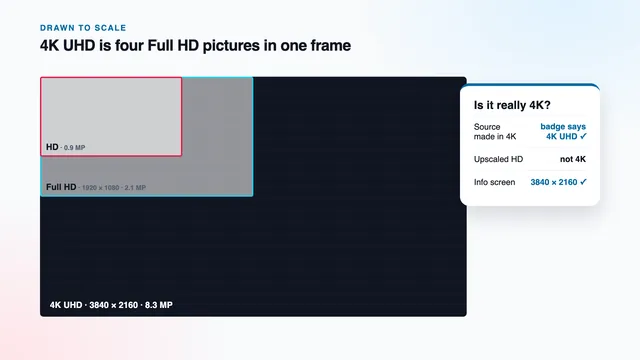
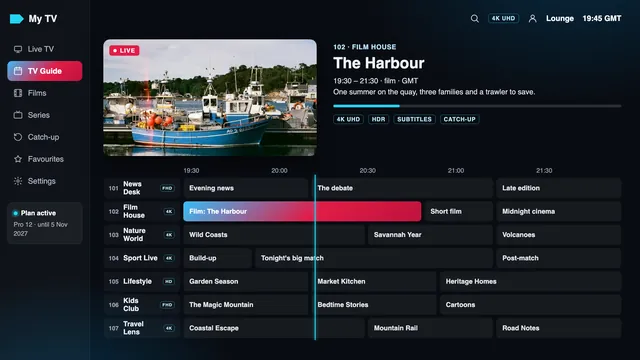
Where the list has one, channels whose source is produced in 4K are gathered in a group whose name contains 4K or UHD. Treat that label as a description of the source, not as a reading of what is on screen this minute. Outside it, nearly everything is HD or Full HD, because that is how it was made, and only the player’s info screen measures the picture in front of you.
Adding the XMLTV guide link
The playlist names the channels; the XMLTV link says what is showing on them. Built the same way, it reads:
http://your-server:port/xmltv.php?username=…&password=…
Players name the field EPG URL, TV guide source, XMLTV address or just Guide. A week of listings for a list this large is a heavy file, so on a streaming stick the first fetch may run for a couple of minutes; later updates are quicker.
- In the app’s settings, look for the section that handles the guide or EPG.
- Paste the XMLTV link from your login message, with no space before or after it.
- Choose a daily update, so the seven days keep rolling forward.
- Open the guide view and compare what a familiar UK channel is showing now with what the grid says.
When the guide is an hour out
Listings are written in UK time: GMT in winter, British Summer Time between the clocks going forward in late March and back in late October. If every programme sits exactly one hour early or late, the app is applying a time zone of its own: shift its EPG time offset an hour forwards or back until the grid agrees with the clock.
Channels with an empty row
A blank row means the channel’s tvg-id found no partner in the guide file, or that its source sends no listings; event channels often show nothing between events. The same rows are usually empty with the Xtream login too, so a gap is rarely a setup mistake.
Players that load the playlist
Any compatible player accepts the details in your message; we make no app of our own and sell no box or stick. A few take only a list, a few only the Xtream login, and most take either. This is how the common ones handle the M3U route:
- IPTV Smarters Pro, listed in the stores as « Smarters Pro », developer Tech Smarters Private Limited, on Apple devices and on Android phones, tablets and TVs. It takes the playlist link or the Xtream login.
- TiviMate, a channel-grid player for Android TV and Fire TV; the app is free and its premium options cost extra. Add the playlist by its URL, then the XMLTV link in the EPG settings.
- IBO Player and Smart IPTV, TV apps that tie the list to the set. IBO Player uses the TV’s MAC address or a device key. Smart IPTV is activated once for each TV, and the list is sent to it from the app’s website using the set’s MAC address.
- VLC, a free player for PC and Mac as well as Android and iOS. It plays any channel in the list but shows no programme guide: a handy second opinion when another app misbehaves.
- Kodi, which reads the list through an add-on, « PVR IPTV Simple Client »: the playlist link goes in its M3U field and the XMLTV link in its EPG field.
- XP IPTV and other compatible players: look for « M3U URL » or « Xtream Codes » on the first screen.
Look-alike apps exist, so compare the developer’s name in the store with the one above, and leave forum APKs alone: they may hide malware. Our comparison of player apps that decode 4K well goes device by device, and the Samsung TV guide covers the MAC-address apps.
Why a playlist cannot turn a picture into 4K
A playlist is text. Even with tens of thousands of entries it weighs a few megabytes, and not one of those bytes is picture. Each entry points at a stream encoded at a fixed resolution before it left the source; renaming a channel or dragging it into a 4K folder changes the label and nothing else. What decides the picture is a chain, and each link can be checked:
- The source: produced in 4K UHD, 3840 × 2160, four times the pixels of Full HD. HD stretched to 2160p is not 4K.
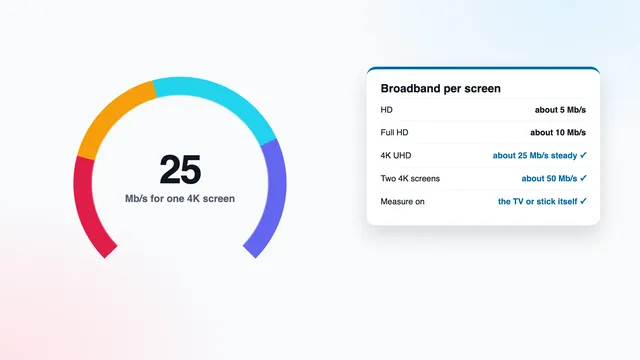
- The line: roughly 25 Mb/s per 4K screen that does not sag, measured on the screen’s own device.
- The decoder: a player and a device that decode HEVC (H.265) in hardware.
- The lead and port: HDMI 2.0 or later, on the device, on the cable and on the TV input.
- The panel: a 4K TV, with HDR shown only when the source carries it and the set supports it.
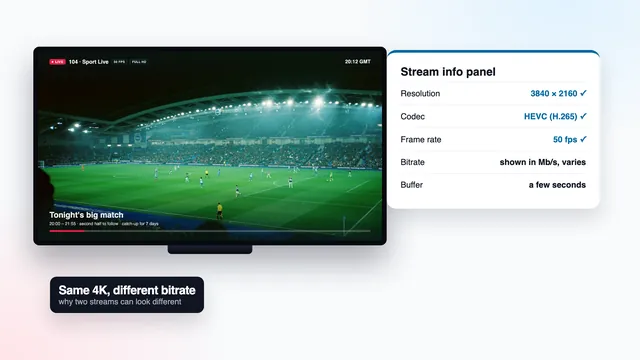
Break any link and the picture falls back, whatever the list says: the same chain set out on the 4K IPTV Premium home page. The guide to what 4K Ultra HD really means looks at upscaling more closely, and the one on bitrate and HEVC shows why two 4K streams can still look different.
Reading the picture rather than the label
Start a channel from the 4K group and open the player’s info screen (the info button, the menu button or a long press of OK, depending on the app). Look for 3840 × 2160, HEVC and the frame rate. Then press the TV’s own info button: its banner should read 2160p too, with an HDR badge when the programme has HDR. If the player says 2160p and the TV says 1080p, the loss sits between them, usually in an HDMI port, a cable or the device’s output setting.
Xtream login or M3U link for 4K viewing
Both routes open exactly the same streams, so the picture is identical: a 4K source reaches you in 4K through either. What changes is how the app loads, what it shows around the picture and how hard it works a small device.
| Xtream login | M3U playlist link | |
|---|---|---|
| What you enter | Username, password and server URL | One long link, plus the XMLTV link |
| Programme guide | Loads with the login | Added by hand in most players |
| Films and series | Their own sections, with posters and seasons | Extra groups in the list, or none, depending on link and app |
| Catch-up | Where a channel has it, often reaching 7 days back | Missing in many players |
| Loading on a stick | One category at a time, as you open it | The whole file at once, slower on low-memory devices |
| End date | Often shown on the player’s account screen | Not shown; read it in your login message |
| Picture quality | The same streams | The same streams |
On a stick or a box, the Xtream login is the lighter route, with less to hold in memory and nothing extra to set up. Keep your 4K IPTV playlist link for the apps that only accept a list, and as a quick cross-check when one app shows a fault.
Keep the link inside your household
Because your username and password are written into the address, anyone holding the playlist link holds your login. Each plan covers one household: Pro 3, Pro 12 and Pro 24 each allow a single stream at once, and Pro 12 Duo allows two. Sharing it beyond the home, or posting it where the public can see it, can get the login suspended.
- Keep the link in the original message and copy it from there when a device at home needs it.
- Paste it only into player apps on your own devices, never into a website offering to host, merge or convert playlists.
- Crop it out of screenshots; our team needs the plan, the device and the error, not the link.
- Before a stick, box or TV leaves the house, delete the playlist and the login from its player.
If you think the link has travelled beyond your home, tell the team straight away.
The end date, and swapping the link after a new order
The last item in the login message is the end date. You pay once, by debit or credit card or PayPal, with nothing kept on file and no direct debit set up, so nothing renews: on that date the playlist link and the Xtream login stop together. A 4K IPTV playlist that played yesterday and returns an error today, with nothing else changed at home, has usually reached that date.
Ordering again later is a new order, and the team sends a new login. Your apps stay installed, but the M3U and XMLTV links change with the username and password, so each player needs the new ones; in some, favourites need setting up again.
Note the end date somewhere you will see it. Pro 12 runs for 12 months at £49, about £4.08 a month, and Pro 24 brings the monthly cost down furthest, to £3.71 over 24 months; whichever you pick, the channels, the library and the picture quality do not change. See the four plans side by side, or read how each plan ends and what it costs per day.
When the playlist will not load
Most failures come from a short list of causes. Work through them in this order before changing anything else:
- The link is incomplete or padded. Compare its ending with the message, where the last characters are the ones that go missing, and delete any space picked up before or after it.
- The end date has passed. Check the date in your message.
- The device lacks memory for a list this size. Use the Xtream login in the same app, which loads one category at a time.
- The app is out of date, or a look-alike. Update it from the store and check the developer’s name.
- The line is the problem, not the list. If channels open but stop and start, the playlist has done its job: look at the connection instead, starting with the bandwidth guide for 4K screens.
Still stuck? Send the player’s name, the device and the exact error message to the team on WhatsApp or by email at contact@4kiptv-premium.co.uk. Help is in English, 24/7.
Frequently asked questions
Where is my 4K IPTV playlist?
It is the M3U link in the message you receive 2 minutes or so after paying, just above the XMLTV guide link. Copy it from that message whenever a device at home needs it.
Is there a separate playlist for the 4K channels?
No, the message carries one M3U link for the whole list. Channels produced in 4K, where the list has them, sit in their own group marked 4K or UHD, beside the HD and Full HD groups.
Why does my playlist show no programme guide?
On the M3U route, most players need the XMLTV link added separately. Paste it into the EPG or guide field and let the first download finish. With the Xtream login, the seven-day guide loads on its own.
Can a different playlist make my channels 4K?
No. A list only holds names and addresses; the resolution is fixed where the programme was produced and encoded. A channel plays in 4K when its source is 4K and your line, decoder, HDMI and TV keep up.
M3U link or Xtream login: which suits a 4K TV better?
The Xtream login, in any player that has it, because it loads faster on a stick and fills in the guide, the library and catch-up by itself. The list remains useful in VLC, in Kodi and in TV apps that accept nothing else. Either way, the picture is identical.
What happens to the playlist on the end date?
It stops working, along with the Xtream login, because plans are paid once and never renew. If you order again you receive a new login, so paste the new M3U and XMLTV links into each player.