4K guide
4K IPTV Samsung TV guide: Tizen apps, HDR10+ and the HDMI settings
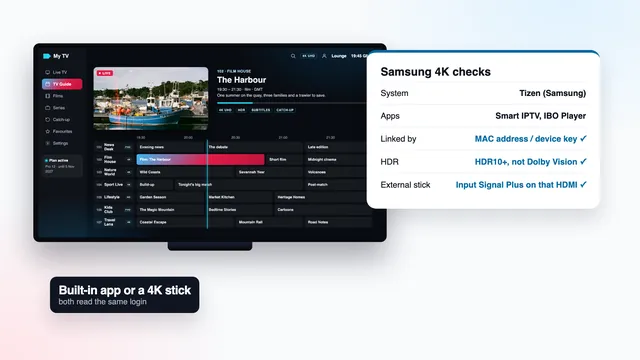
A 4K IPTV Samsung TV setup can take two routes: a player app on the set’s own Tizen system, or a 4K stick plugged into one of its HDMI sockets. Either can show 3840 × 2160 on programmes and films made in 4K at source. They differ in the apps you can use, the HDR you get and the settings that can quietly hold the picture back.
Check the model: 4K panel, year and software
Settings › Support › About This TV shows the model code and the software version. These checks, there and on the model’s specification page, tell you what this television can do with a 4K stream.
| Check | Where to look | Why it matters for 4K |
|---|---|---|
| Panel resolution | The specification page: 3840 × 2160 (UHD) | Only a UHD panel shows 4K. A Full HD Samsung shows Full HD, whatever the source. |
| Model year | The year letter in the model code: T for 2020, A for 2021, B for 2022, C for 2023, D for 2024 | The store’s list of players changes with the year, and older sets receive fewer app updates. |
| HDR formats | The specification page, under HDR | HDR10 and HLG on Samsung’s HDR sets, HDR10+ on most 4K models from 2018 on, Dolby Vision on none. |
| Software version | About This TV, then Software Update under Support | Update before you install a player; some apps ask for a recent Tizen version. |
| One Connect box | A separate unit joined to the screen by one thin cable, on some higher-end models | Its HDMI and Ethernet sockets are the ones to use. |
A Full HD Samsung can follow everything in this guide; the picture simply stops at 1080p. On a 4K set, the next question is which route the picture takes from the stream to the panel.
4K IPTV Samsung TV: the built-in app or a stick
The two routes reach the same channels. What changes is who decodes the picture, which HDR you get and how many settings stand between the stream and the screen.
| Player app on the TV (Tizen) | 4K stick on HDMI | |
|---|---|---|
| Who decodes HEVC | The TV’s own chip | The stick; HDMI then carries the picture to the TV |
| Players | Those your model’s store lists, often Smart IPTV and IBO Player | On Fire TV: Smarters Pro or TiviMate; on Apple TV: App Store players |
| Login | M3U playlist tied to the set’s MAC (Smarters, where listed, takes Xtream) | Xtream login typed in the player |
| HDR | HDR10 and HDR10+ where the source has them | HDR10 or HDR10+ from the stick; Dolby Vision titles fall back |
| Settings that can hold 4K back | Few: the picture mode | Input Signal Plus, the socket, the cable, the stick’s output |
| Extra outlay | A one-off activation per TV for Smart IPTV | The stick, if you do not own one |
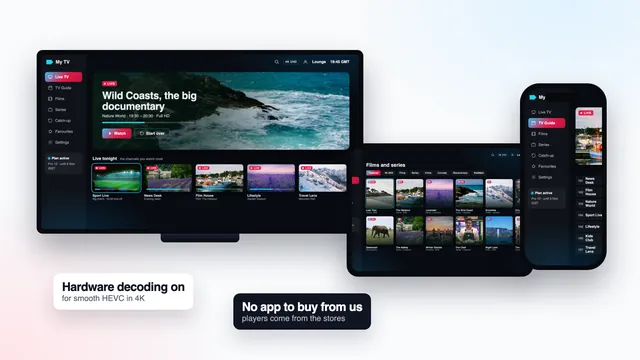
The TV’s own app is the shortest chain: no cable, no socket setting, nothing between the decoder and the panel. A stick earns its place when your set’s store lists no player you like, when the TV is older and slow in its menus, or when you want the same app and remote on several televisions.
A 4K Samsung from before 2018 may still have a good panel, but its store may no longer list current players and its apps may stop receiving updates. A stick keeps such a set useful: the stick brings the apps and the TV only shows the picture, provided the socket takes 4K at 50 or 60 Hz.
Players on Tizen and MAC-address activation
Open Apps from the Home bar, search for each player by name and install the one your store lists. Store catalogues vary by model, by year and by country, so a player a friend uses on a newer set may not appear on yours.
Smart IPTV
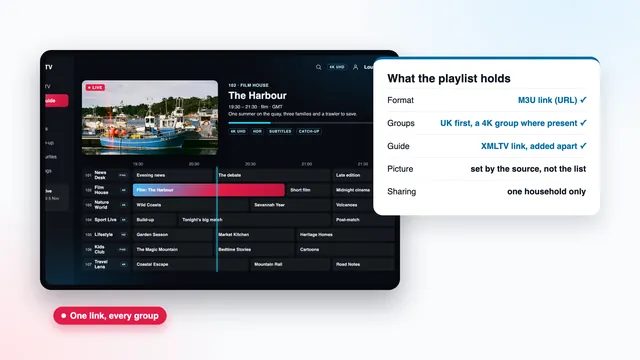
Smart IPTV shows the TV’s MAC address on its first screen. The playlist is attached to that address on the app’s own website: you enter the MAC and the M3U link from your login message there, then restart the app on the TV. Activation is a one-off for each TV and is handled by the app’s developer, not by us.
IBO Player
IBO Player displays the set’s MAC address together with a device key, and your playlist is tied to both on the developer’s website; the team can guide you through it on WhatsApp. Its activation terms belong to its developer and can change, so read them in the app before you start.
IPTV Smarters Pro
Where your store lists it, Smarters Pro skips the MAC step and takes the Xtream login directly: username, password and server URL, typed as http://your-server:port with your own details. Whether it appears depends on the model and the country.
If the MAC address changes
The address a player shows can depend on whether the TV is on Wi-Fi or on a cable. Decide how the set will connect before you activate. If you switch later and the app shows a different address, the playlist has to be linked to the new one.
HDR formats and picture settings
HDR10+ yes, Dolby Vision no
Samsung backs HDR10+, the dynamic format it helped create, and leaves Dolby Vision out of its televisions. For IPTV this matters only on titles produced in HDR; everything in SDR looks the same either way.
- HDR10: read by every Samsung 4K set with HDR, and carried by most HDR sources.
- HDR10+: read by most Samsung 4K models from 2018 on; it adjusts brightness scene by scene.
- HLG: the HDR format designed for broadcast, read by Samsung’s HDR sets.
- Dolby Vision: not read. A stream that also carries an HDR10 layer plays in HDR10; one that does not may lose its HDR on a Samsung.
A 4K stick handles this by itself: it reads what the television supports and sends HDR10 or HDR10+ instead of Dolby Vision. The Fire TV 4K settings guide and the Apple TV Format and Match Content guide cover the stick’s side of it.
Some recent Samsung models also offer Auto HDR Remastering, which makes SDR pictures look more like HDR. It can be pleasant, but it is the TV’s own processing, not HDR from the source, and the HDR badge you may see with it says nothing about the stream. It sits in the expert picture settings if you prefer it off.
Picture settings worth changing
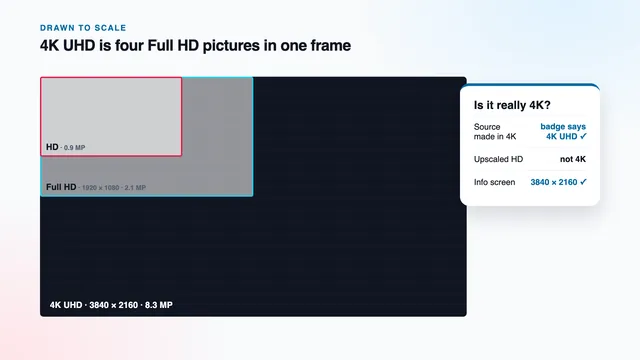
A 4K stream holds four times the pixels of Full HD; the TV’s processing decides how much of that detail you keep. These settings sit under Settings › Picture, with the finer ones in Expert Settings.
- Picture Mode. Movie or Filmmaker Mode for films and drama; Standard for daytime TV. Dynamic is bright and pushes colours past what the source holds.
- Picture Clarity, called Auto Motion Plus on earlier models. For 50 fps sport, a light or custom setting keeps motion smooth; for films, a low setting avoids the over-smooth look that makes cinema resemble video.
- Picture Size. 16:9 Standard with Fit to Screen on, so a 3840 × 2160 picture maps pixel for pixel instead of being cropped and enlarged.
- Game Mode. Off for television. It cuts the TV’s motion and picture processing, which suits a console, not a match.
- Contrast and sharpness boosts. Keep them low. They exaggerate edges but cannot add detail the source does not carry.
A 4K stick on a Samsung: Input Signal Plus
Out of the box, a Samsung’s HDMI sockets run in a reduced mode meant for older devices. In that mode a 4K stick can be held to 4K at 30 Hz, or find HDR refused. Input Signal Plus opens the full bandwidth, one socket at a time.
- Plug the stick into the socket it will stay in. On models with a One Connect box, that is a socket on the box.
- Open Settings, then Connection (General on sets made before 2022), then External Device Manager.
- Select Input Signal Plus and switch it on for that HDMI socket only.
- Restart the stick so it reads the new mode, then check that its display menu now offers 2160p and HDR.
On many recent sets every HDMI socket accepts 4K at 60 Hz once the setting is on; on some entry models only one or two do, and the label beside the socket or the manual tells you which. A cable marked Premium High Speed or Ultra High Speed finishes the job.
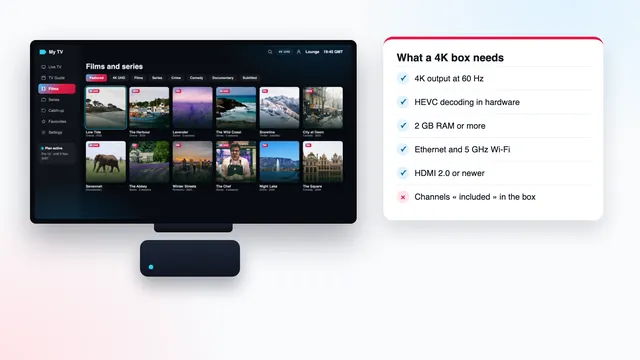
The stick then needs its own settings: output at 2160p, frame-rate matching and adaptive HDR. The guide to 4K box specs lists what to look for if you are choosing a device to plug in.
Ethernet port speed and Wi-Fi on Samsung sets
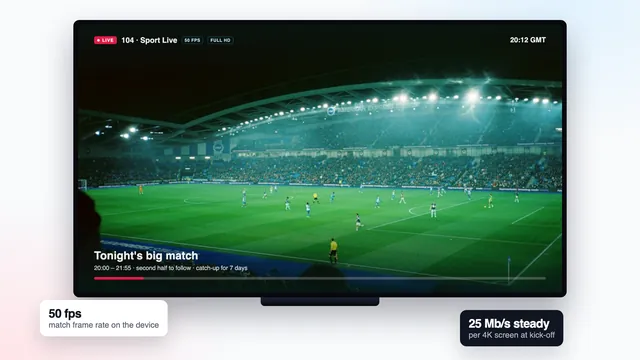
Plenty of televisions, Samsung’s included, come with a 100 Mb/s Ethernet socket rather than a gigabit one. For a 4K IPTV Samsung TV that is no handicap: a single 4K channel uses about a quarter of it, at roughly 25 Mb/s. It does explain a common puzzle, though: a speed check run on the TV over the cable stops a little under 100 Mb/s, even on much faster broadband.
Wi-Fi on the same TV may read higher, yet the cable usually wins on steadiness, which is what 4K needs through the 19:00–23:00 peak. If the router is far away, a powerline pair or a mesh unit placed by the set is a sound middle path. On Wi-Fi, connect to the router’s 5 GHz network and keep the distance short.
To measure, open the TV’s Internet browser and run a speed page at the hour you usually watch. For two 4K screens at once, on Pro 12 Duo, plan on about 50 Mb/s together; the bandwidth guide for 4K has the detail.
Checking the picture on a Samsung
What you check on a 4K IPTV Samsung TV depends on the route the picture takes.
Player app on the TV
There is no HDMI step, so the panel shows exactly what the player decodes. The channel’s 4K tag and the player’s stream information, where the app offers one, give the source resolution. On many models an HDR or HDR10+ badge appears in a corner when HDR starts.
Stick on HDMI
The TV’s input banner shows what arrives through the socket, on many models the resolution and refresh rate. Since a 4K stick upscales everything to its output, a 3840 × 2160 line there confirms the socket and the cable, not the channel. Check the source in the player on the stick.
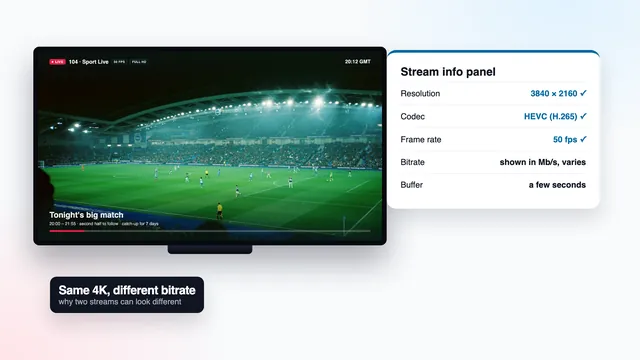
Either way, a sharp picture is not proof of 4K: a good Samsung upscales Full HD very cleanly. The guide to IPTV 4K Ultra HD explains the difference, and the 4K bitrate guide shows why two 4K streams can still differ.
Plans and help for Samsung homes
Whether the picture comes from a Tizen app or from a stick, the plan behind it opens the same channels and library, with 4K on whatever was made in 4K at source. For a 4K IPTV Samsung TV that is the only screen in the house, Pro 12 at £49 covers 12 months, about £4.08 per month. Pro 24 stretches to 24 months for £89, the cheapest month at £3.71, and Pro 3 gives 3 months for £29. One screen on the TV’s own app and a second on a bedroom stick, both in use the same evening, call for the two screens of Pro 12 Duo (£79).
Paying is a single charge by card or PayPal, and the login message lands 2 minutes or so after you have paid, with the plan’s last day written in it. Within 7 days of paying you can claim a refund if no login came, or if no screen showed a picture even with the team’s help. Compare the plans and prices on the home page, see the 4K IPTV plans in detail, read how 4K IPTV Premium sets out 4K, or ask the team which player your model’s store lists before you order. Once the login arrives, the step-by-step 4K setup page walks through the same details on every other screen in the house.
Frequently asked questions
Can I install IPTV Smarters Pro on a Samsung TV?
On some models and in some countries, yes: search the Apps panel by name. If it is not listed, look for Smart IPTV or IBO Player, or plug a 4K stick into HDMI and install the player there.
Will Dolby Vision titles work on my Samsung?
Not as Dolby Vision, which Samsung leaves out. Such a title shows in HDR10 when its stream includes an HDR10 version, and Samsung’s 4K models from 2018 on also read HDR10+.
What does Input Signal Plus do?
It switches one HDMI socket to its full bandwidth, so a stick can send 4K at 50 or 60 Hz with HDR. It only matters for devices plugged in by HDMI; apps running on the TV itself do not need it.
Why does a speed check on my Samsung stop just under 100 Mb/s?
The set’s Ethernet socket is probably a 100 Mb/s one, so a check over the cable cannot read higher. A 4K channel needs about a quarter of that, so the socket is not what limits your picture.
Do I need a stick if my Samsung is already 4K?
Not necessarily. A 4K IPTV Samsung TV can play 2160p through its own app, which is the shortest chain. A stick helps when the store lists no suitable player, or when an older set has become slow.
How do I find my Samsung’s model year?
Open Settings › Support › About This TV and read the model code. A letter in it marks the year, for example A for 2021, C for 2023 or D for 2024; the specification page for that code confirms it.