4K guide
4K IPTV Player: Choosing the App and Setting It Up for UHD
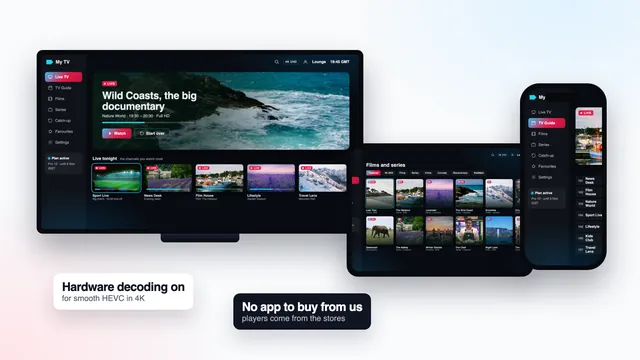
A 4K IPTV player is the app that turns your login into a picture, and it decides more than most people expect: whether HEVC is decoded by the part of the chip built for it, how much stream is held in reserve, and whether the TV switches to the right frame rate. This guide pairs players with devices, goes through the decoder, buffer and display settings, shows the info panel that proves what is playing, and covers look-alike apps, empty « 4K player » apps and unknown APK files. We publish no app of our own.
What a 4K IPTV player can and cannot do
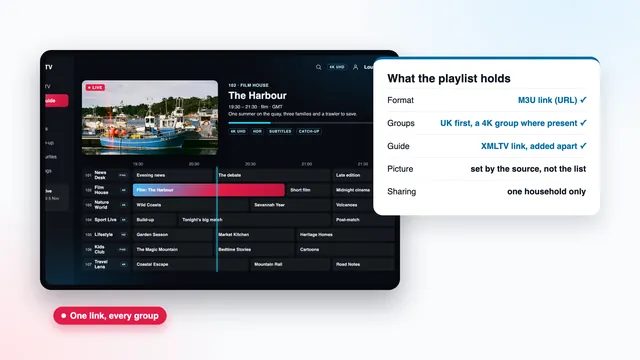
Every app on this page is an empty shell until you log in. It reads the three lines of an Xtream Codes login (username, password and server URL) or an M3U playlist link, then plays the streams the login opens. Channels, films and their picture quality all come from the login; the app’s work is to decode them faithfully.
That work is where players differ. Two apps on the same TV, fed the same 4K channel, can play smoothly in one and stutter in the other, because only one uses the hardware decoder, or only one switches the TV to 50 Hz. Choosing and setting up the player is the easiest gain anywhere in the 4K IPTV chain from source to screen.
Player apps by device
Pick from what your device’s own store carries. The table reflects the stores at the time of writing; availability changes with the model and the country, and in-app prices vary by store.
| Device | Players to look at | Where they come from | For 4K, check |
|---|---|---|---|
| Android TV or Google TV, on a TV or a box | TiviMate, IPTV Smarters Pro, Kodi, VLC | Google Play | Hardware decoding on, frame-rate matching on |
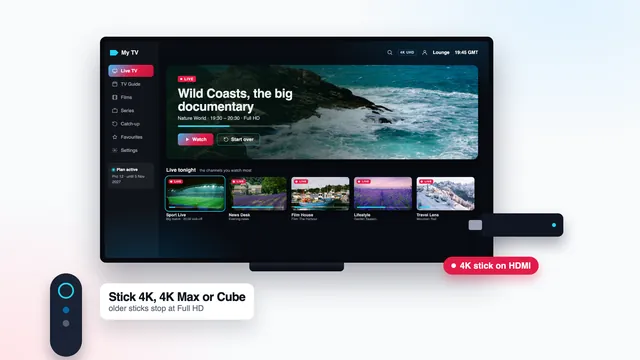
| Fire TV Cube, Stick 4K or 4K Max | TiviMate, IPTV Smarters Pro, VLC | Amazon Appstore, or Downloader for apps it does not carry | The model can install apps from outside the Appstore |
| Apple TV 4K | IPTV Smarters Pro, VLC | App Store | Match Content: both switches on |
| LG (webOS) or Samsung (Tizen) TV | IBO Player, Smart IPTV; Smarters Pro where the model allows | The TV’s own app store | The HDR formats your set supports |
| Phones and tablets (iPhone, iPad, Android) | VLC, IPTV Smarters Pro | App Store or Google Play | Useful to confirm the login; 4K detail shows on a large panel |
| Windows PC or Mac | VLC, Kodi; Smarters Pro on Macs with Apple silicon | The developer’s website, or the Mac App Store | Hardware-accelerated decoding on |
IPTV Smarters Pro
Its store name is « Smarters Pro » and the developer shown is Tech Smarters Private Limited. Installing it is free, and a Premium upgrade is offered inside, priced differently from one store to another. Apple’s store has it for iPhone, iPad and Apple TV, and for Macs built on Apple silicon; Google Play has it for Android phones, tablets and TVs. The Amazon Appstore does not list it, so Fire TV owners install it another way, explained further down.
TiviMate
TiviMate targets Android TV and Fire TV and is laid out around a channel grid, like a set-top box guide. A free version comes with paid options inside the app. It suits homes that mostly watch live channels, and its playback settings include a buffer size and automatic frame rate.
TV-based players: IBO Player and Smart IPTV
Both run on the television and hand the stream to the set’s own decoder, so HEVC and HDR depend on the TV, not the app. Smart IPTV is activated once for each television, and the playlist reaches it from the app’s website, matched to the TV’s MAC address. IBO Player shows a MAC address or device key on its opening screen, and the playlist is linked to that. A Samsung set reads HDR10+ and has no Dolby Vision, while LG’s OLED and QNED ranges read Dolby Vision.
VLC, Kodi and XP IPTV
VLC is free on computers, Android, iPhone and iPad and opens the M3U link directly, so it is the fastest way to see a login play on a laptop. It has no proper guide grid, but its codec window is the clearest readout of resolution and codec you will find.
Kodi reaches live channels through an add-on, PVR IPTV Simple Client (Add-ons › Install from repository › PVR clients), where you paste the M3U link and, separately, the XMLTV guide link. It takes longer to set up and repays it with fine control of refresh rate and decoding. XP IPTV also accepts Xtream details; check which of your stores lists it at the time of writing, and read the developer line first.
Hardware or software decoding
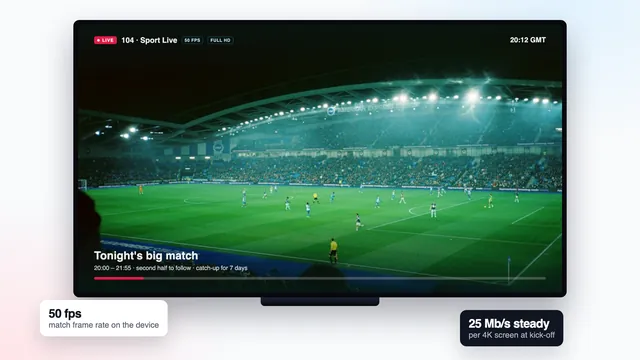
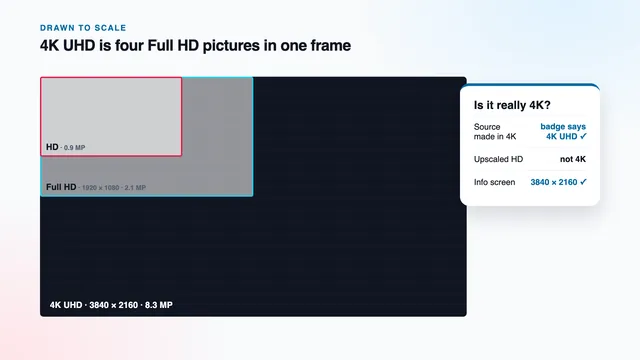
A 4K frame holds 8.3 million pixels, and live sport can send fifty a second. Rebuilding that from compressed HEVC is too much for the general-purpose processor in a TV, stick or box, so their chips carry a dedicated video decoder, and the player has to hand the work to it. That is hardware decoding. Software decoding uses the main processor: a handy fallback for an odd HD channel, but at 4K it usually means dropped frames, sound running ahead of the picture and a warm device.
Players label the choice « hardware decoder », « HW » or « HW+ », « hardware acceleration » or « MediaCodec ». Where to look, at the time of writing:
- VLC for Android: Settings › Video › Hardware acceleration, set to Automatic.
- VLC on a computer: Preferences › Input / Codecs › Hardware-accelerated decoding, set to Automatic.
- Kodi on Android: Settings › Player › Videos, with the settings level raised to Advanced or Expert, then « Allow hardware acceleration - MediaCodec (Surface) » switched on.
- TiviMate, Smarters Pro and the rest: a decoder choice in the player or playback settings, where the app offers one. Leave it on hardware unless a single channel misbehaves.
| What you see | Likely cause in the player | What to change |
|---|---|---|
| Smooth HD, stuttering 4K | Software decoding | Switch the decoder to hardware |
| Sound drifting ahead of the picture at 4K | The decoder cannot keep up | Hardware decoding, and close other apps |
| Green blocks, or a black picture with sound, on one channel | The hardware decoder rejects that stream | Try the other decoder for that channel only |
| A small, regular judder on panning shots | TV left at 60 Hz for a 50 fps source | Turn on frame-rate matching |
| Pauses every few minutes at the same hour | The line dips at peak, or the buffer is too small | Measure the speed on the device; raise the buffer |
| Washed-out colours on an ordinary channel | HDR forced on a standard picture | Let dynamic range follow the content |
Buffer size: what it smooths and what it costs
The buffer is the stretch of stream the player downloads ahead of the moment you are watching. While it holds a few seconds in reserve, a short dip in the line passes unseen; when it runs dry, the picture stops.
A bigger buffer has a price. Channels take longer to open, and live pictures, already running a few seconds to roughly 30 seconds behind the broadcast, slip further back. For 4K, start at medium or large; go up a step if short pauses appear, down a step if changing channel feels slow. VLC calls it network caching, in milliseconds: its default of 1,000 ms is short for 4K, and 3,000 ms is a reasonable value to try.
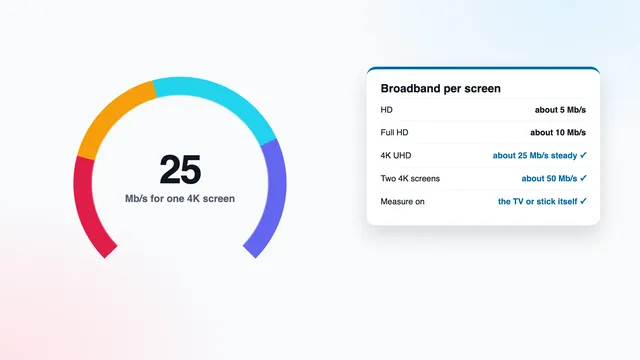
No buffer makes up for a line that stays below 25 Mb/s on a 4K screen; it only postpones the pause. The guide to 4K bandwidth at home shows how to measure what reaches the device.
Stream format: MPEG-TS or HLS
Some players built around the Xtream login let you choose how live channels arrive, usually MPEG-TS (.ts) or HLS (.m3u8). Keep the default at first. If one channel stutters while the rest play cleanly, switching the format is a quick thing to check before you touch anything else.
The stream info panel: proof of what is playing
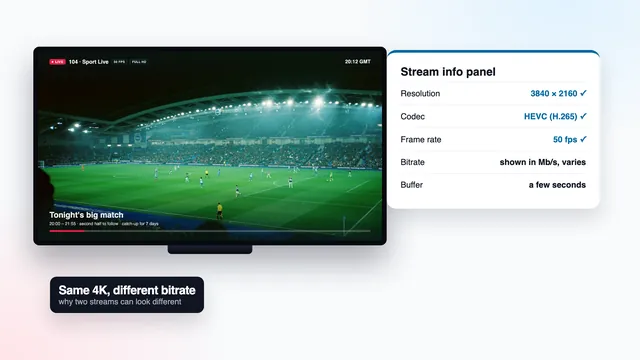
The info panel is the most honest screen in any player. It reads the stream itself and reports what arrived, whatever the channel name or its group suggests. Learn where it lives in your 4K IPTV player and you can check a 4K claim in five seconds.
| Field | Reading on a 4K UHD source | What a different reading means |
|---|---|---|
| Resolution | 3840 × 2160 | 1920 × 1080 is Full HD; 1280 × 720 is HD |
| Codec | HEVC (H.265) | H.264 (AVC) at 4K exists, but needs more bitrate for the same picture |
| Frame rate | 50 fps for live sport produced at that rate; often 25 or 24 for films and series | 25 fps on a match means the source runs at that rate |
| Bit depth and HDR | 10-bit, with HDR10, HLG, HDR10+ or Dolby Vision where the source has it | 8-bit means standard dynamic range |
| Bitrate | A figure that holds steady through fast motion | Sharp falls show as blocks or smearing in quick scenes |
| Dropped or lost frames | Zero, or close to it | A climbing count means the decoder or device is falling behind |
In VLC on Windows, Tools › Codec Information (Ctrl+J) opens it; on a Mac, Window › Media Information; the Statistics tab counts lost frames. In Kodi, press O on a keyboard during playback. Most TV players put a stream info or « i » button in the playback overlay.
Do not confuse it with the TV’s own banner, which reports the signal on the HDMI cable: 2160p whenever the device outputs 4K, even when the device is enlarging a Full HD picture. A banner at 2160p beside a panel at 1920 × 1080 means upscaled Full HD, and no setting will change that. Our 4K IPTV bitrate guide explains why two genuine 4K streams can still look different.
Display settings that work with the player
Part of what decides the picture sits in the device’s display settings. Set these once and every player benefits.
- Frame rate. British channels are made at 50 Hz. On Apple TV the switch is Match Frame Rate, inside Settings › Video and Audio › Match Content; on Fire TV, look for Match Original Frame Rate among the display options. Where the system does not switch by itself, TiviMate (automatic frame rate) and Kodi (« Adjust display refresh rate ») can.
- Dynamic range. Match Dynamic Range sits beside it on Apple TV. Elsewhere, pick the option that follows the content rather than forcing HDR.
- Resolution and sound. Set the device to 2160p; a player cannot send more pixels than the device outputs. For Dolby Atmos, when the source offers it, pass the audio untouched to an Atmos-capable soundbar or AV receiver.
- Guide time. Listings an hour early or late, usually just after the clocks change, are put right with an « EPG time offset » of one hour, since the guide runs on UK time.
Look-alike apps and empty « 4K player » apps
Search any app store for « 4K IPTV player » and you get dozens of results with television icons, « 4K » in the name and screenshots full of channels. Two problems hide in that list.
Copies of well-known players
Some apps borrow the name, icon and screenshots of a known player. They may half work, carry heavy advertising or request access to things a video app never needs. Read the developer line under the title before installing: for Smarters Pro it should read Tech Smarters Private Limited, and a near-identical icon from anyone else is a different app.
Store apps sold as « 4K » that contain no channels
A player from an app store holds no channels, however it is named or pictured; its screenshots show it after someone has logged in. Paying for its premium features buys features, such as a layout, recording or fewer adverts. It adds no channel and cannot turn a Full HD source into 4K.
Store versions against unknown APK files
On Android devices an app can be installed from a file, an APK, as well as from a store. Store versions are signed by their developer, scanned, and updated in place when a fix comes out, including fixes to the way the app drives the hardware decoder. An APK passed around a forum or a chat group offers none of that: it may be out of date, altered to unlock paid features, or carrying malware.
Stay with the device’s own store wherever the player is listed. The routine exception is Smarters Pro on Fire TV: it is installed with Downloader, an Appstore app by AFTVnews, once Downloader has been allowed to install unknown apps in the Fire TV’s developer options. We send the link for Downloader together with your login; neither that link nor any Downloader code appears on this site. Sticks running Amazon’s Vega OS take Appstore apps only, so on those the route is closed.
The 4K Firestick guide shows every menu, and if your device cannot decode HEVC at all, the checklist for a 4K box lists what a replacement needs.
Logging in and checking 4K in five minutes
- Install the player from your device’s store, checking the developer’s name on its page.
- Pick « Xtream Codes » as the login type and enter the three lines from your login message in the same order. The server address looks like
http://your-server:port; copy it rather than retyping it. - Wait while channels, films and the guide load; a large list can take a minute the first time.
- In the player’s settings, put the decoder on hardware, choose a medium buffer and turn on automatic frame rate where it exists.
- Start something listed in a 4K group and bring up the info panel. Look for 3840 × 2160, HEVC and a lost-frame count that stays at zero.
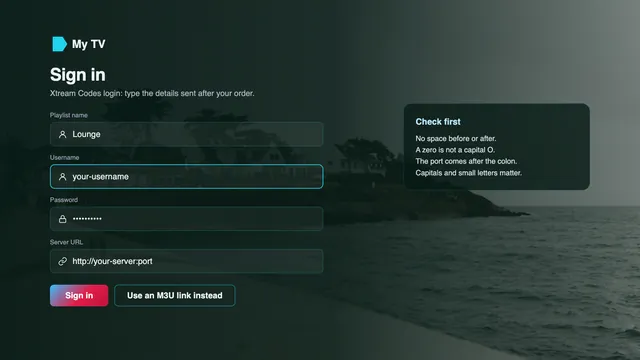
The 4K IPTV setup guide shows the login screens device by device. If you have not ordered yet, the four plans on the home page carry the same channels and picture quality: Pro 12 is £49 for 12 months, paid once, and Pro 12 Duo at £79 suits a home with two 4K screens and about 50 Mb/s to share between them. The plan comparison sets each one against its end date.
If the panel still reads Full HD on a title listed as 4K, or the login is refused, send the player’s name and a photo of the panel to the team via the contact page.
Frequently asked questions
Which 4K IPTV player gives the sharpest picture?
None is sharper by design: every player receives the same stream from the same login. What differs is decoding, frame rate and stability, so the app that uses your device’s hardware decoder and switches the TV to 50 Hz looks cleanest there. On Android TV and Fire TV that is often TiviMate or Smarters Pro; on a Samsung or LG set, IBO Player or Smart IPTV.
Does the player app cost extra?
Not to start. Smarters Pro and TiviMate install for nothing and sell options inside, Smart IPTV needs a one-off activation for each television, and VLC and Kodi cost nothing. Each developer sets its own price, which varies by store; none of that money reaches us, and none of it adds a channel.
Is there a 4K IPTV Premium app?
No. We do not publish, sell or rebrand any app, box or stick. Your login goes into a compatible player from your device’s store, and an app using a name like ours has no connection with us.
Why does the info panel show 1920 × 1080 on a channel I expected in 4K?
Because that channel’s source is Full HD. 4K UHD appears only on programmes produced in 4K, and the rest are HD or Full HD. If a title inside a 4K group reads 1920 × 1080, send its name to the team so they can look into it.
Can I use different players on different screens?
Yes. The same login opens in any compatible player, so TiviMate in the lounge and Smarters Pro on a tablet is fine. The screen count follows the plan, not the app: Pro 3, Pro 12 and Pro 24 cover one screen at a time, Pro 12 Duo covers two.