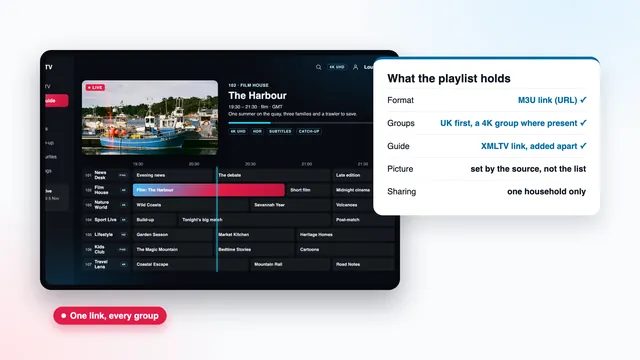
4K guide
4K IPTV Firestick guide: the right model, the install and a true 2160p picture
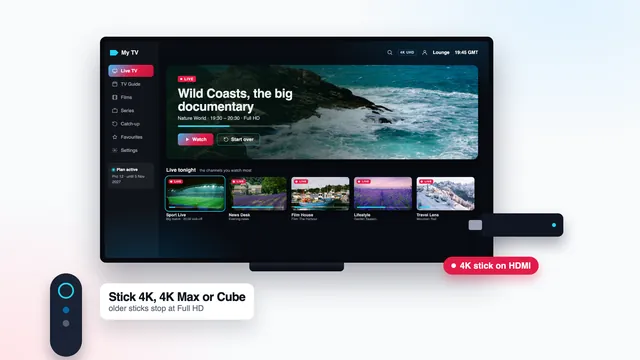
A 4K IPTV Firestick setup earns its name only when three things agree: a Fire TV model that can send 2160p, a player installed on Fire OS, and display settings that keep the output at 3840 × 2160. This guide takes them in that order, then shows you how to check on your own TV whether you are watching real 4K or Full HD scaled up.
Which Fire TV models send a 4K picture
Amazon’s sticks look almost identical in the hand, so go by the name on the box rather than the shape. The 4K models carry a hardware HEVC (H.265) decoder, output 3840 × 2160 over HDMI and switch to HDR on titles that carry it. The Lite and the basic stick are decent players, but their output tops out at 1080p, so nothing they send your TV can be 4K, whatever the channel.
| Fire TV device | Top output | 4K HDR | Takes a player from outside the Appstore | Wired network |
|---|---|---|---|---|
| Lite stick | 1080p (Full HD) | No | Yes, on Fire OS | Through an adapter |
| Basic stick (no 4K in its name) | 1080p (Full HD) | No | Yes, on Fire OS | Through an adapter |
| Fire TV Stick 4K | 2160p (4K UHD) | Where the source has it | Yes, on Fire OS | Through an adapter |
| Fire TV Stick 4K Max | 2160p (4K UHD) | Where the source has it | Yes, on Fire OS | Through an adapter |
| Fire TV Cube | 2160p (4K UHD) | Where the source has it | Yes, on Fire OS | Socket on the 2022 model |
| Vega OS sticks | Varies | Varies | No | See the listing |
Read the name of the stick you already own
Open Settings, then My Fire TV, then About. The top line names the device. If the name includes 4K, 4K Max or Cube, carry on with this guide. If it says Lite, or has no 4K in it at all, the stick will show every channel in HD or Full HD, and only a 4K device will give you 2160p.
Vega OS: a 4K stick that cannot take the player
Amazon has begun moving some new sticks from Fire OS, which grew out of Android, to an in-house system called Vega OS. Vega OS accepts apps from Amazon’s own store and from nowhere else, and IPTV Smarters Pro is absent from it. At the time of writing the Fire TV Stick 4K Select runs it, and it is easy to mistake for the plain 4K stick on a product page, so check that a listing says Fire OS before you order.
What a 4K IPTV Firestick needs besides the stick
A stick is one link in a chain that runs from the source to the panel. Each link passes on only what it receives, so the weakest one sets the picture you see. For a 4K IPTV Firestick the links are these:
- A source made in 4K. Most channels are produced in HD or Full HD. 4K plays on programmes and films made in 4K at source, which the player marks with a 4K or UHD tag.
- About 25 Mb/s, holding steady. Measured on the stick, in the evening, not on a laptop sitting next to the router.
- Hardware HEVC decoding. Every 4K Fire TV has it; a player switched to software decoding throws it away.
- An HDMI 2.0 or newer socket and a cable to match. An older socket limits the signal to 4K at 30 Hz, or to 1080p.
- A 4K panel. A Full HD television shows Full HD, whatever the stick sends it.
- HDR only when the source has it, and only in a format your TV can read.
Our end of the chain does not vary between plans: HD, Full HD, and 4K UHD on anything made in 4K at source, with HDR and 50 fps sport whenever the source carries them. The home page sets out what a 4K IPTV plan from us includes; this guide deals with the links in your lounge.
Installing the player with Downloader
IPTV Smarters Pro is missing from Amazon’s Appstore, so it arrives through a go-between: Downloader, a free app by AFTVnews that the Appstore does list. You do this once per stick.
- On the home screen, go to Find (the magnifier icon), search for Downloader and install the version published by AFTVnews.
- In Settings, go to My Fire TV, then Developer options. Under Install unknown apps, turn the Downloader entry on.
- Open Downloader and type, in its address field, the download address included in your login message. Copy it character by character: one wrong letter leads to an error page, not to the player.
- Confirm the install when Fire OS asks. When Downloader then offers to delete the installation file, accept: storage on a stick is small and the player needs room for its cache.
- Return to Developer options and turn Downloader off again. Switch it back on only when the player needs an update.
Developer options not showing?
Recent Fire OS versions keep that menu out of sight until you unlock it. In My Fire TV, open About, move to the device’s name and click the select button seven times running. A short message appears near the bottom of the screen, and Developer options turns up in My Fire TV.
Typing the login with the Fire TV remote
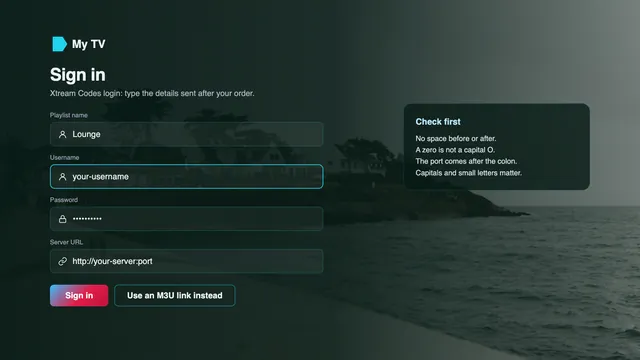
In the player, pick Xtream Codes as the login type. Give the profile any name you like, then fill in the three Xtream fields from your message, character for character, with http:// and the port number included, shaped like http://your-server:port. The channel groups load with UK first, then the film and series library, then seven days of listings in UK time.
Typing with a remote is slow: the Fire TV app on your phone can act as the stick’s keyboard, and Smarters also takes the M3U link from the same message as a single field.
Prefer TiviMate? It also runs on Fire TV and opens the same login; ask the team how to add it. The guide to 4K player apps compares the players, and the 4K IPTV setup guide covers every other screen in the house.
Display settings that hold the stick at 2160p
A Fire TV picks its output when it first meets your TV and keeps it until something changes. Three settings, under Display & Sounds, then Display, decide whether the picture leaves the stick in 4K; their names shift a little between Fire OS versions.
| Setting | Choose | What it does for 4K |
|---|---|---|
| Video resolution | Auto (up to 4K UHD), or 2160p 50 Hz | Sends 3840 × 2160 to the TV. If Auto settles on 1080p, the HDMI socket or the cable is the usual cause. |
| Match original frame rate | On | If the player requests it, the output follows the stream: 50 for UK live TV and sport, 24 or 25 for many films. |
| Dynamic range settings | Adaptive | SDR stays SDR; HDR switches on for the titles that carry it. |
Why 50 Hz suits a UK lounge
Television made for UK screens runs at 25 or 50 frames a second. An output at 60 Hz does not divide evenly into that, so the stick repeats some frames and not others, and a slow pan across a pitch shows a faint, regular judder. Match original frame rate removes it when the player asks the stick for the switch. If your player does not, choosing 2160p 50 Hz yourself fixes live channels and leaves only 24 fps films slightly uneven.
Adaptive, not Always HDR
Always HDR converts every picture to HDR, including the many channels made in SDR. Skin tones go pale, blacks drift towards grey and the TV stays in its HDR mode all evening. Adaptive leaves SDR alone and switches when a title produced in HDR begins, provided your TV reads the format that title uses.
HDMI, power and the network connection
The HDMI socket and the cable
A 4K TV does not always offer 4K on every HDMI socket. Many sets print 4K, 60 Hz, HDR or HDCP 2.2 beside the sockets that take the full signal, or list them in the manual. HDCP 2.2 is the copy-protection handshake that 4K output depends on, and a socket without it can hold the stick at 1080p.
- Plug the stick into a socket marked for 4K. If the space behind the TV is tight, use the short extender from the box rather than bending the stick.
- Switch on the TV’s enhanced HDMI mode for that socket. Each brand names it differently; on a Samsung it is Input Signal Plus, as the Samsung TV 4K setup guide explains.
- An AV receiver or soundbar in the path must pass 4K, and its cable to the TV needs the Premium High Speed or Ultra High Speed label.
- Power the stick from its own mains adapter. A TV’s USB socket often supplies too little current, and an underpowered stick freezes, restarts or puts a warning on screen.
A cable, where you can run one
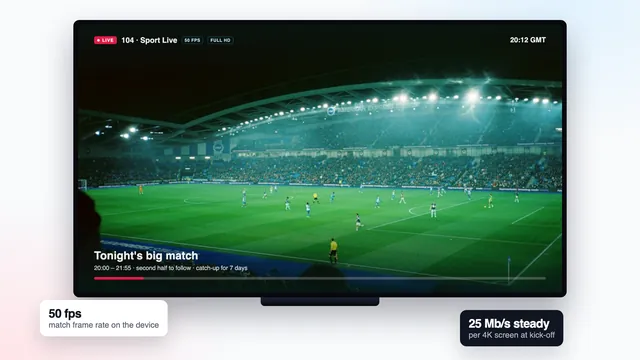
About 25 Mb/s is within reach of most UK broadband; what upsets 4K is the dip, above all in the evening rush from about 19:00, worst on weekends and big match nights. The 2022 Fire TV Cube has an Ethernet socket built in. Sticks, and earlier Cubes, need a Fire TV Ethernet adapter, wired in-line on the power lead. Such adapters are typically 100 Mb/s parts, so a single 4K stream uses a quarter of what they can carry, and a wire keeps that rate when Wi-Fi would wobble.
Wi-Fi done well
Without a cable, join your router’s 5 GHz network rather than the 2.4 GHz one, and keep the stick in the same room as the router or the next one. When the router is a long way off, a powerline kit or a mesh unit beside the television helps more than any setting on the stick.
Measure on the stick, at the hour you watch: a speed-check app from the Appstore or a speed page in the Fire TV’s web browser will do. Two 4K screens at once, on Pro 12 Duo, need about 50 Mb/s together. The guide to 4K bandwidth at home explains how to read the figures.
Confirming that the picture is really 4K
Two readings answer two different questions, and you need both of them.
- The player’s stream information describes the source. During playback, open the info panel or the playback menu, depending on the player: 3840 × 2160 means the channel is sending 4K, 1920 × 1080 means Full HD. The same panel shows the codec, usually HEVC on 4K, and the frame rate.
- The TV’s info banner describes what the stick sends. With Video resolution on Auto, a 4K Fire TV upscales everything to 2160p, so the banner reads 3840 × 2160 on an HD channel as well.
Read together: banner at 2160 and player at 2160 is real 4K. Banner at 2160 and player at 1080 is a Full HD source scaled up by the stick, sharp but not 4K. Banner at 1080 means the socket, the cable or a setting is holding the stick back, whatever the player reports.
The guide to what 4K Ultra HD really means explains why a scaled-up picture is not 4K, and the guide to 4K bitrate shows why two streams at the same resolution can still differ in detail.
When the picture falls short: causes and fixes
Most 4K IPTV Firestick complaints trace back to one of these; the 1080p case is in the questions below.
- A channel tagged 4K reads 1920 × 1080 in the player. Tell the team which channel and at what time, so they can check that source.
- Pauses in the evening, none in the morning. Speed dips at peak time. Use a cable or the 5 GHz band, pause large downloads in the house, or watch that channel’s Full HD version for the night.
- A faint stutter on slow pans. 60 Hz output on 50 fps material. Turn on Match original frame rate, or pick 2160p 50 Hz.
- Sound but a black picture, on 4K channels only. The player may be decoding in software. If it has a decoder option, choose hardware.
Which plan suits a Fire TV household
All four plans open the same channels, library and picture; the only differences are length and screen count. For a 4K IPTV Firestick in a one-TV home, Pro 12 is our suggestion: 12 months cost £49 in a single payment, which comes to £4.08 per month or roughly 13p per day. Over 24 months, Pro 24 lowers the monthly figure to £3.71, for £89. Pro 3 (£29, 3 months) lets you watch 4K on your own stick before you commit to a year, and Pro 12 Duo (£79) runs two streams side by side, say a Cube downstairs and a 4K stick in a bedroom.
Payment is one charge, by card or PayPal, through a secure link the team sends. Your login reaches WhatsApp or your inbox roughly 2 minutes after the money clears and states an end date; nothing renews. Refunds within 7 days cover two cases: no login reached you, or no screen showed anything even with the team’s help. A Full HD stick does show a picture, so check the model first.
Compare the four plans and their prices, read how the 4K IPTV plans differ, or ask the team which stick suits your TV.
Frequently asked questions
My stick is a Lite: what will 4K channels look like?
Full HD at best. The Lite and the basic stick send 1080p at most, so a channel produced in 4K reaches the TV with a quarter of its pixels. They still play HD and Full HD channels well; for 2160p you need one of the three 4K models.
Is the 4K Max a better 4K IPTV Firestick than the plain 4K stick?
For the picture, no: both send 2160p, decode HEVC in hardware and show HDR where the source has it. The Max has a quicker processor and, on the current model, newer Wi-Fi, so long channel lists feel faster.
Why does my Fire TV show 1080p on a 4K television?
Usually the HDMI socket or the cable cannot carry 4K at 50 or 60 Hz, or the TV’s enhanced HDMI mode is off for that socket. Try a socket labelled 4K or HDR, switch the mode on and set Video resolution to Auto again. If the menu offers no 2160p entry at all, the stick may be a Full HD model.
Do I need Ethernet for 4K on a Fire TV?
Not always: a 4K stick on 5 GHz near the router can hold about 25 Mb/s. A cable or adapter holds it more reliably at peak time, so try one first if 4K channels pause at night while Full HD ones do not.
Can the player go on a Vega OS stick?
No. Vega OS takes apps from Amazon’s store alone, and IPTV Smarters Pro is not listed there. Check that a stick runs Fire OS before you order it, or ask the team which device fits your TV.
Where do I find the link to type into Downloader?
In your login message, alongside the Xtream fields, the M3U link and the guide link. Use that address only: codes posted online can lead to altered copies of the player.